To chat with a PDF using AI, you upload the file to an assistant such as Claude, ChatGPT or NotebookLM and ask questions in plain language; the model reads the text (and often the page images) and answers from it. This guide compares the main tools and their limits, gives prompts that produce answers you can verify, explains where AI misreads documents, and covers privacy.
- General assistants (Claude, ChatGPT, Gemini) and source-grounded tools (NotebookLM) all let you upload PDFs and ask questions.
- Long PDFs may be read as text only or through retrieval, so tables, charts and pages deep in the file are where answers go wrong.
- Ask for page numbers and exact quotes with every answer, then spot-check them against the PDF.
- Scanned PDFs, multi-column layouts, complex tables and footnotes need extra checking.
- Do not upload confidential documents to tools or plans your organization has not approved.
How do you chat with a PDF using AI?
You chat with a PDF using AI by uploading the file to an AI assistant and asking questions about it in plain language. The assistant extracts the text, often looks at the page images too, and answers from the document. It works for contracts, research papers, financial reports, manuals and anything else you would otherwise skim for an hour.
The basic workflow takes a minute:
- Open an assistant that accepts files (Claude, ChatGPT, Gemini or NotebookLM).
- Upload the PDF using the attach or paperclip button, or drag it into the chat.
- Ask a first question that orients you: "What is this document, who is it for, and what are its main sections?"
- Ask specific questions and request page numbers and quotes with each answer.
- Check the quoted pages in the PDF for anything you will rely on.
Step 5 is what separates useful document analysis from confident mistakes. The rest of this guide is about making that step fast and making mistakes less likely.
Which AI tools can you use to chat with a PDF?
Most people do not need a dedicated "chat with PDF" app. The major assistants handle PDFs well, and a source-grounded tool like NotebookLM covers research across many files. Limits below are from each vendor's help pages at the time of writing (October 2026).
| Tool | Strength | Key PDF limits |
|---|---|---|
| Claude (claude.ai) | Long documents, careful reading, analysis and drafting from the document | 500 MB per file in chat, 20 files per chat, PDFs up to 1,000 pages |
| ChatGPT | General analysis, data extraction, working with spreadsheets alongside PDFs | 512 MB per file, 2M tokens per text document |
| NotebookLM | Answers grounded in your sources with citations, many sources per notebook | Up to 50 sources per notebook on free; 500,000 words or 200 MB per uploaded file |
| Gemini | Works inside Google Drive and Docs | See Google's current limits |
| Dedicated PDF apps | PDF-specific features like highlighting answers in the viewer | Vary by product |
A few details change how you should use these tools:
- Claude gives PDFs of 100 pages or fewer both text and visual analysis, so it can read charts and images. Between 101 and 1,000 pages, it analyzes the text only. If your answer is in a chart on page 240, split the PDF.
- ChatGPT has a 512 MB per-file limit and 2M tokens per text file, with upload rate limits that are tighter on the free tier.
- NotebookLM is designed to answer only from the sources you add. Its help page lists PDFs alongside Google Docs, web pages, YouTube videos and more.
If you work with the same set of documents repeatedly, put them in a Claude Project or a notebook so every chat starts with them.
How does AI actually read a PDF?
AI reads a PDF by converting it into something a language model can process: extracted text, page images, or both. How well that conversion works decides how good the answers are.
Anthropic's PDF support documentation describes a typical approach: each page is converted to an image, the text of each page is extracted, and the model analyzes both together. Text alone typically costs 1,500 to 3,000 tokens per page depending on density, with images on top.
That has practical consequences:
- Text extraction can scramble layout. Multi-column papers, sidebars, headers and footers can end up interleaved, so sentences from different columns run together.
- Tables are fragile. Extracted as text, a table can lose its row and column structure. The page image helps, but only if the tool uses it for that page.
- Long documents may not fit. When a document is larger than the model can read at once, tools either read text only, read part of it, or use retrieval: they search the document for passages related to your question and answer from those. Retrieval can miss the one paragraph that matters. See retrieval augmented generation explained for how that works.
- Scans are images. A scanned PDF has no text layer, so the tool must read the page images. Quality depends on scan quality.
Prompts that get accurate answers from a PDF
Ask for evidence with every answer. A model that must quote the document and cite pages makes fewer things up, and the errors it does make are easy to catch.
Start with an orientation prompt:
Read the attached PDF. Before answering any questions:1. Tell me what kind of document it is, its date and author if stated.2. List the main sections with page ranges.3. Tell me if any pages were hard to read (scanned, tables, images) or if you could only process part of the document.The third point matters: it gets the tool to admit when it could not read everything.
Then use an evidence-first question format:
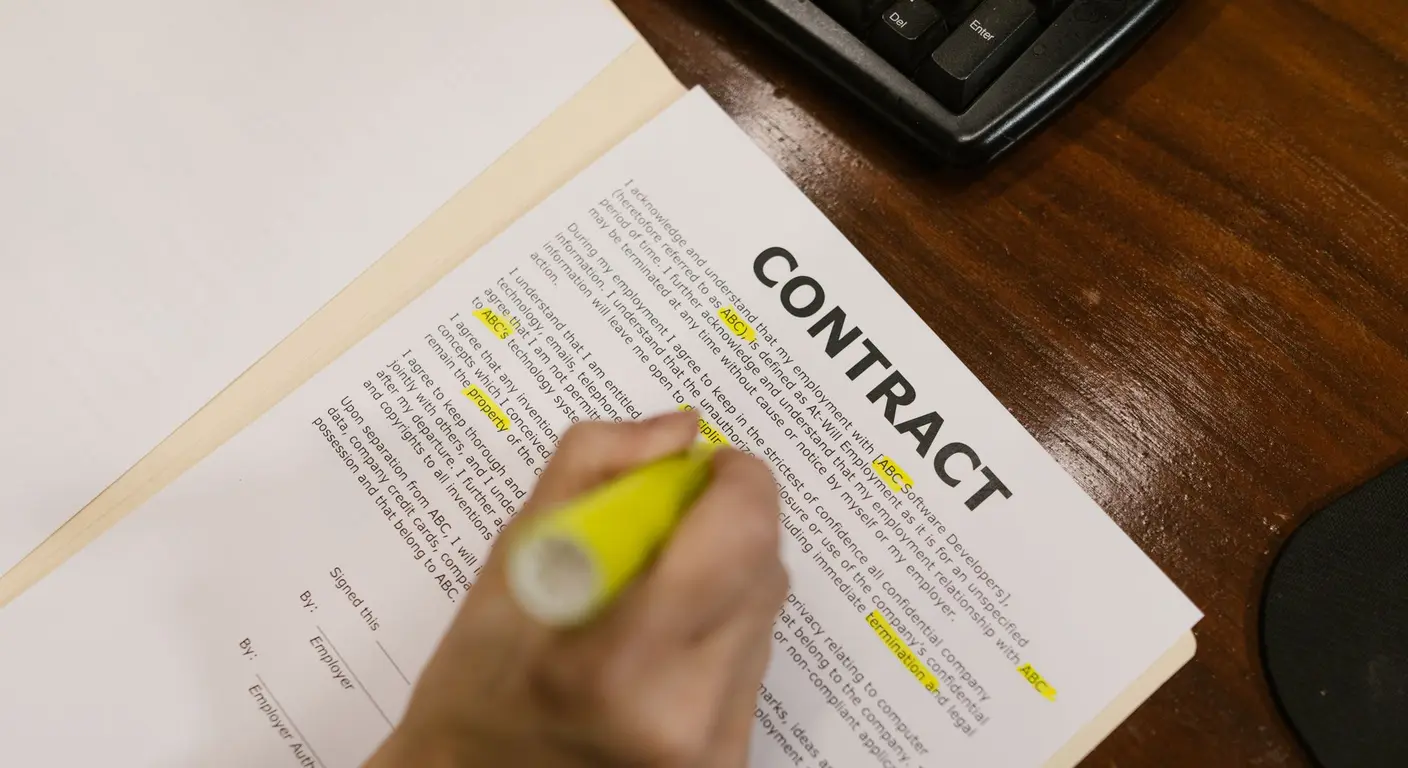
Question: What are the termination conditions in this contract?Rules:- Answer only from the document. If it isn't there, say "Not in the document."- For each point, give the page number and an exact quote (max 40 words).- Separate what the document says from any interpretation you add, and label the interpretation.Weak and strong prompts for common tasks:
| Weak prompt | Strong prompt |
|---|---|
| "Summarize this" | "Summarize this 80-page report for a CFO in 10 bullets. Each bullet needs a page reference. End with three numbers I should verify." |
| "What does it say about risk?" | "List every risk factor named in sections 3 and 4, with page numbers. Quote the sentence that names each one." |
| "Compare these two PDFs" | "Make a table comparing the 2025 and 2026 policies on: eligibility, limits, exclusions, effective date. Cite page numbers from each file. Mark cells where the documents don't say." |
| "Extract the data" | "Extract every line item from the invoice table on page 2 as CSV with columns: description, quantity, unit price, total. Then check that the totals add up and report any mismatch." |
The last example asks the model to check its own extraction. For numbers, a self-check like "add up the totals" catches many extraction errors.
Where does AI get PDFs wrong?
AI misreads PDFs in predictable places. Check these every time the answer matters.
| Problem | What goes wrong | What to do |
|---|---|---|
| Tables | Rows and columns get misaligned; numbers attach to the wrong label | Ask for the table as CSV and compare a few cells with the page |
| Charts and figures | Values read from a chart are estimates, or skipped on text-only processing | Ask what the chart shows qualitatively; get exact values from the data tables |
| Multi-column layout | Sentences from adjacent columns merge | Spot-check quotes; for academic papers, check the abstract and conclusions by hand |
| Footnotes and fine print | Exceptions in footnotes get ignored | Ask explicitly: "List all footnotes and exceptions that modify section 5" |
| Long documents | Only parts are read or retrieved | Ask which pages the answer came from; split large files by section |
| Scanned pages | Misread characters, especially numbers | Run OCR first, or verify every number |
| Missing information | The model fills gaps from general knowledge | Require "Not in the document" when the answer isn't there |
The last row is the most common source of confident errors. A model asked about a contract's notice period may give a typical notice period if the document does not specify one. The "answer only from the document" rule and quote requirement are your main defenses. The broader causes are covered in the guide to AI hallucinations.
Do not rely on an AI summary alone for legal, medical or financial decisions. Use it to find the relevant pages fast, then read those pages yourself or have a professional review them.
How do you analyze many PDFs at once?
For a handful of related documents, upload them together and ask comparison questions with citations for each file. For dozens or hundreds, use a tool built for many sources, or a small script.
- Up to about 20 files: a single Claude chat accepts 20 files; a project or notebook works for repeated use.
- A research collection: NotebookLM keeps up to 50 sources per notebook on the free plan, with answers cited to sources. The guide to an AI research assistant covers literature reviews in depth.
- Hundreds of similar documents (invoices, forms, contracts): a script that sends each PDF to a model API with the same extraction prompt and writes results to a spreadsheet is more reliable than a chat. Ask for structured output, then validate totals and required fields in code.
A practical extraction prompt for batch work:
From this invoice, return JSON with keys: vendor_name, invoice_number,invoice_date (YYYY-MM-DD), currency, line_items (description, quantity,unit_price, total), subtotal, tax, grand_total, page_numbers_used.Use null for any field not present. Do not infer values.Then check in code that line item totals add up to the subtotal, and route any mismatch to a person.
Is it safe to upload PDFs to AI tools?
Uploading a PDF sends its full contents to the AI provider, so treat it like emailing the document to a vendor. Whether that is acceptable depends on the document, your plan and your organization's policy.
- Check the plan's data terms. Consumer and business plans differ in how uploads may be used for training and how long they are kept. Business and enterprise plans generally offer stronger commitments.
- Follow your company's AI policy. Many organizations allow only approved tools for internal documents. The guide on whether it is safe to use AI at work explains what to look for.
- Redact when in doubt. Remove names, account numbers and client identifiers before uploading if you only need the structure or the argument.
- Keep regulated data out of unapproved tools: health records, personal data covered by privacy law, and material under NDA.
- Delete when done. Remove uploaded files and chats you no longer need, especially in shared projects.
Your PDF checklist
Use this the next time you analyze a document with AI:
- Choose an approved tool for the document's sensitivity.
- Split very long PDFs by section, especially if charts or tables matter.
- Start with the orientation prompt and ask what could not be read.
- Ask every question with "answer only from the document," page numbers and quotes.
- Ask for tables as CSV and have the model check totals.
- Verify every number, quote and conclusion you will act on against the page.
- Save good prompts for document types you see often.
If your document work becomes repetitive, such as extracting the same fields from new PDFs every week, a coding agent can turn the prompt into a small script with validation. Orkio runs agents like Claude Code on an always-on cloud box, so that kind of job can be built and maintained while you do other work.
Frequently asked questions
What is the best AI to chat with a PDF?
For general questions and analysis, the assistant you already use (Claude, ChatGPT or Gemini) works well for most documents. For research across many sources with answers tied to citations, NotebookLM is built for that. Test your own document type, since accuracy varies with layout, tables and length.
Can ChatGPT read PDFs?
Yes. ChatGPT accepts PDF uploads in chats and projects, with a limit of 512 MB per file and 2 million tokens per text document according to OpenAI's help center. Free accounts have tighter upload limits than paid plans.
Is it safe to upload a PDF to AI?
It depends on the document and the plan. Consumer and business plans handle uploaded content differently, and business and enterprise plans usually offer stronger data commitments. Never upload documents with client data, health records or trade secrets to a tool your organization has not approved.
Why does AI give wrong answers about my PDF?
Common causes are text extraction problems (scans, columns, tables), long documents where the model only retrieves some passages, and the model filling gaps from its general knowledge. Asking for exact quotes and page numbers makes these errors easy to catch.
Can AI read scanned PDFs?
Often, because many tools analyze page images as well as text. Quality drops with poor scans, handwriting and small fonts. Running OCR first and checking a few pages by hand gives more reliable results.